Add
This guide explains how to generate a page with a form for adding information. As a default, the system automatically validates information and inserts data into a database.
Add page
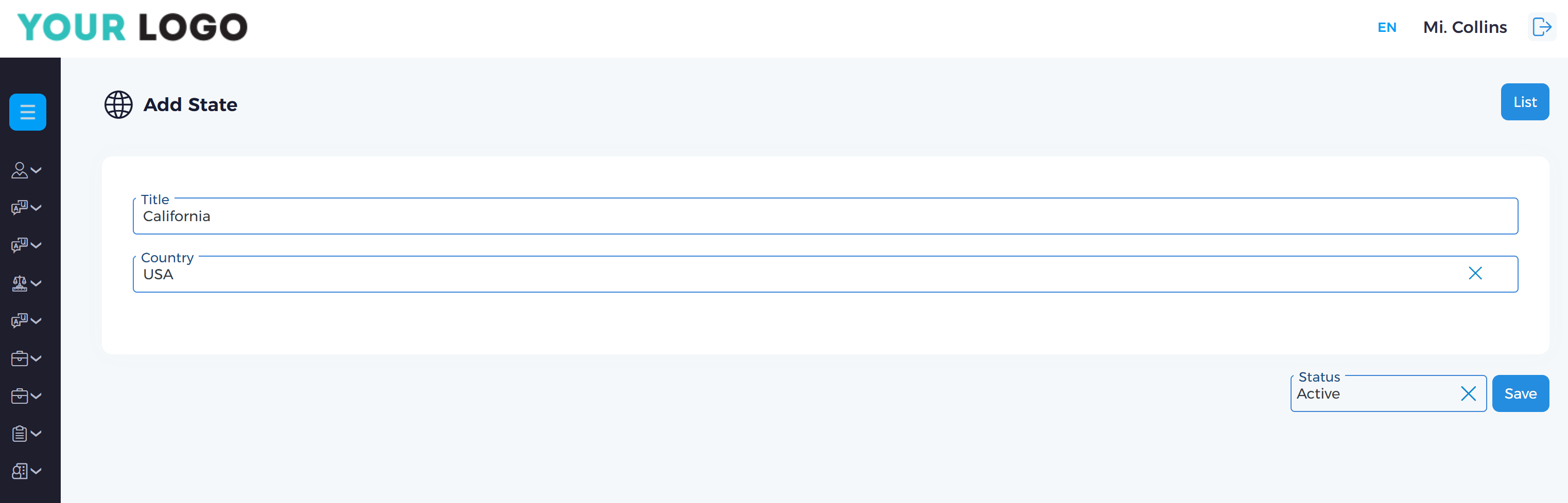
Generate a simple page for adding information.
For example, we have state and county tables in our database.
📄 AVRO Form Structure (JSON Configuration)
This structure defines a dynamic form with grouped input elements. It's used by the AVRO framework to render forms in a low-code environment.
🔧 Generate add page
- JSON
- PHP
  {
      "block": [
    {
      "group": [
        {
            "element": [{
                  "input_text": {
                      "title": "Title",
                      "name": "title"
                  }
            }]
        },{
            "element": [{
              "select_option": {
                  "title": "Country",
                  "name": "country_id",
                  "col_name": "title"
                }
            ]}
        },
      ],
      "status": {
          "1": "Active",
          "-1": "Passive"
        }
  }
  public function add_state()
  {

      $conf['block'][0]['group'][0]['element'][0] = [
        'input_text' =>
          [
              'title' => $this->language('Title'),
              'name' => 'title'
          ]
      ];

      $conf['block'][0]['group'][1]['element'][0] = [
        'select_option' =>
          [
              'title' => $this->language('Country'),
              'name' => 'country_id',
              'col_name' => 'title'
          ]
      ];

      $conf['status'] = [
          1 => $this->language('Active'),
          -1 => $this->language('Passive')
      ];

      return $this->addons->direction->add($conf);
  }
🔄 Dynamic Dropdown: select_option with Automatic Table Binding
In AVRO, the following JSON configuration:
"select_option": {
  "title": "Country",
  "name": "country_id",
  "col_name": "title"
}
is automatically interpreted by the system to fetch data from the related database table — without requiring any manual SQL query.
🧠 How It Works
-
name: "country_id"Indicates that this field refers to a foreign key — most likely pointing to theidfield in thecountrytable. -
col_name: "title"Tells AVRO to display thetitlecolumn from thecountrytable as the dropdown label.
📡 Behind the Scenes
AVRO automatically generates a SQL query such as:
SELECT id, title FROM country WHERE status = 1
- The results are then rendered as a dropdown list.
- You do not need to define the
source table; AVRO infers it from thename(country_id → country).
🖥️ Interface Output Example
[ Coutry: ▼ ]
   - USA
   - CANADA
   ...
✅ Benefits
- No need for hard-code table joins or dropdown sources
- Clean JSON structure — easy to maintain
- Automatically respects localization and status filtering (if configured)
🧱 Form Layout Logic in AVRO
The layout logic in AVRO is very straightforward:
block— The main container. You can place multiple form groups inside a block.group— Represents a row in the form layout.element— Represents the actual form element (input, select, checkbox, etc.)
You define the structure, order, and size of each element within the group — allowing full control over layout and responsiveness.
You can create more than 5000 unique form combinations using AVRO's element configuration.
Result
Validation Error Handling in AVRO
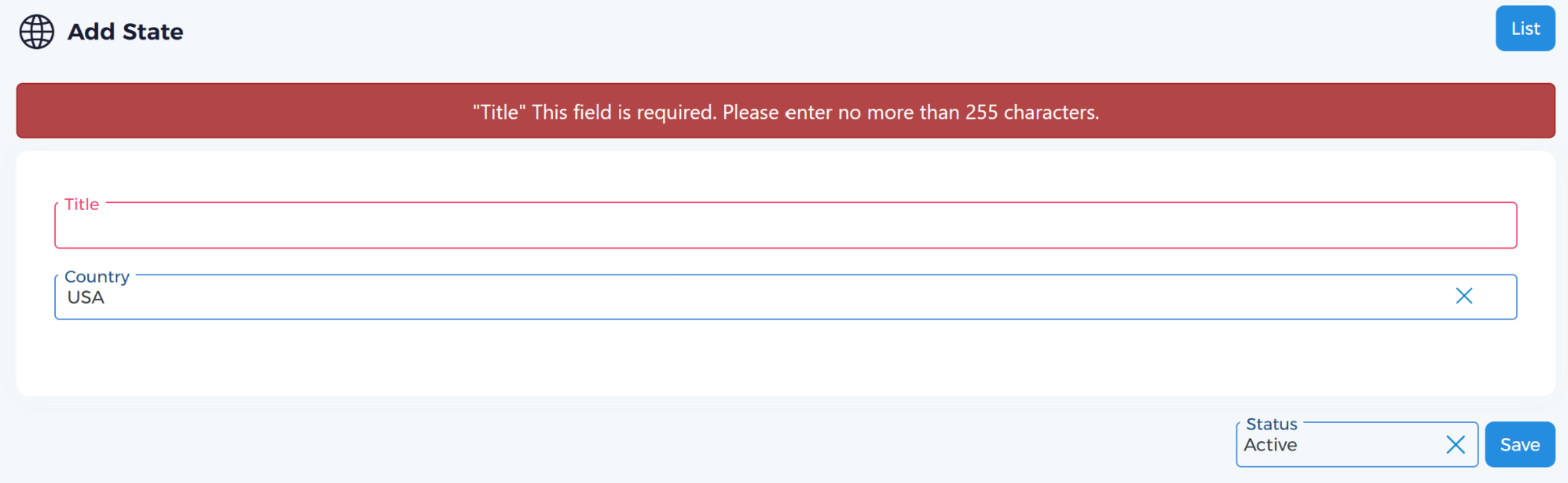
If the form is filled out incorrectly, the system checks the data based on the predefined validation configuration and returns an error message.
🖥️ Interface Behavior
- The invalid fields are highlighted in red
- A detailed error message appears above or below the respective field
- A general error alert may appear at the top of the form summarizing the issue
📡 API Response Format
The API returns a structured JSON response like the following:
{
  "success": 0,
  "message": "",
  "error": {
    "elements": ["title"],
    "messages": {
      "title": [
        "Title",
        "This field is required.",
        "Please enter no more than 255 characters."
      ]
    }
  },
  "id": 0
}
✅ Success Message Handling in AVRO
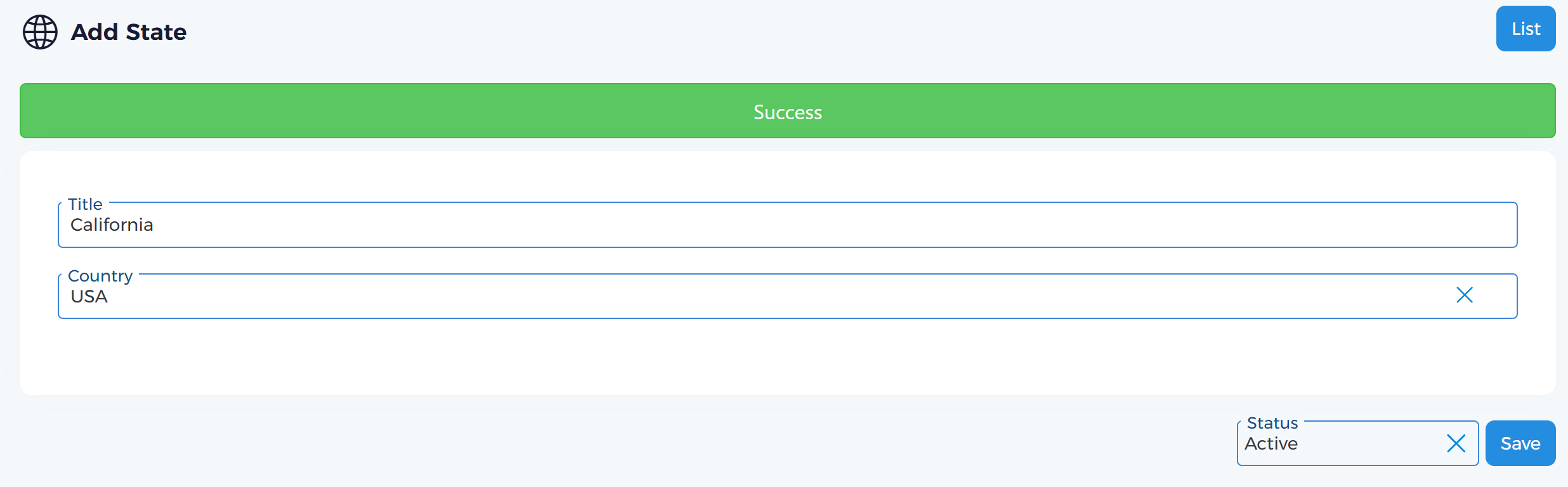
When the form is submitted correctly, the system returns a success response and displays a confirmation message.
🖥️ Interface Behavior
- A green success alert is displayed at the top of the form with a message like: "Success"
- The form remains filled with the submitted data (e.g.,
Title: California,Country: USA) - The user can choose to continue editing or navigate back to the list
📡 API Response Format
Upon successful submission, the API returns the following response:
{
  "success": 1,
  "message": "Success",
  "error": "",
  "id": 124
}
🔁 Redirect
Redirect Behavior After Form Submission
By default, after a successful form submission, the system automatically redirects the user to the list page where the new record appears.
🚫 Prevent Redirect
If you want to stay on the same page and simply show a success message, include the following hidden input in your form:
<input type="hidden" id="no_redirect" value="1">
This tells the system not to redirect after saving and instead stay on the current page.
🔀 Custom Redirect
If you want the system to redirect to a custom URL after success, use the following hidden input:
<input type="hidden" id="redirect" value="<your_custom_link>">
Replace <your_custom_link> with the destination URL you want the user to be redirected to after the successful operation.
🧩 Creating Redirect Controls with AVRO Form Elements
Of course, you don't need to write raw HTML for these hidden inputs.
You can define them easily using AVRO's form element configuration:
{
  "element": [
    {
      "input_hidden": {
        "name": "no_redirect",
        "value": 1
      }
    }
  ]
}
or for a custom redirect:
{
  "element": [
    {
      "input_hidden": {
        "name": "redirect",
        "value": "/custom/redirect/url"
      }
    }
  ]
}
This makes it quick and consistent to configure redirect logic across all your forms using JSON — without writing any HTML manually.
Advanced Add pages
To explore more available form elements and their configurations, visit the Form Elements section in the documentation.